Email marketing generates an average return of $36 for every $1 spent. That kind of ROI makes it one of the most cost-effective channels a business can use, which is exactly why so many teams want to figure out how to create a marketing email in Outlook. If your team already lives in Microsoft 365, using Outlook as a starting point makes practical sense. But there are important differences between sending a well-crafted promotional message through Outlook and running a true email marketing campaign. This guide covers both, so you know exactly what Outlook can do, where it falls short, and how to get the most out of each approach.
Key Takeaways
Mail Merge (via Microsoft Word and Outlook) is the primary method for sending personalized marketing emails directly from Outlook.
Free Outlook accounts cap sends at roughly 300 emails per day and 100 recipients per message.
Mass emails sent from Outlook are often flagged as spam by other ESPs and recipients.
Outlook now enforces stricter email authentication requirements for domains sending more than 5,000 emails per day, mandating SPF, DKIM, and DMARC settings.
For list sizes beyond a few hundred contacts, a dedicated email service provider (ESP) will deliver better results, better analytics, and safer deliverability.
What Outlook Can (and Cannot) Do for Email Marketing
Many small business owners already use Outlook for daily communications, making it a natural choice for marketing campaigns. The platform offers built-in features that can help you create professional-looking emails, manage contact lists, and track basic performance metrics without investing in expensive third-party software.
That said, Outlook was built for professional communication, not bulk email marketing. Before you commit to it as a campaign tool, you need to understand where its limits sit.
Without email templates and HTML design resources, it is hard to create eye-catching branded emails. You cannot preview emails across different devices and browsers before sending, and without detailed metrics, you will not know how well your campaigns are performing.
According to industry studies, average inbox placement for bulk sending through Outlook is around 70 to 80%, while dedicated email platforms often achieve 95% or higher thanks to optimized sending infrastructure and authentication.
Email marketing generates an average return of $36 for every $1 spent. That kind of ROI makes it one of the most cost-effective channels a business can use, which is exactly why so many teams want to figure out how to create a marketing email in Outlook. If your team already lives in Microsoft 365, using Outlook as a starting point makes practical sense. But there are important differences between sending a well-crafted promotional message through Outlook and running a true email marketing campaign. This guide covers both, so you know exactly what Outlook can do, where it falls short, and how to get the most out of each approach.
Key Takeaways
Mail Merge (via Microsoft Word and Outlook) is the primary method for sending personalized marketing emails directly from Outlook.
Free Outlook accounts cap sends at roughly 300 emails per day and 100 recipients per message.
Mass emails sent from Outlook are often flagged as spam by other ESPs and recipients.
Outlook now enforces stricter email authentication requirements for domains sending more than 5,000 emails per day, mandating SPF, DKIM, and DMARC settings.
For list sizes beyond a few hundred contacts, a dedicated email service provider (ESP) will deliver better results, better analytics, and safer deliverability.
What Outlook Can (and Cannot) Do for Email Marketing
Many small business owners already use Outlook for daily communications, making it a natural choice for marketing campaigns. The platform offers built-in features that can help you create professional-looking emails, manage contact lists, and track basic performance metrics without investing in expensive third-party software.
That said, Outlook was built for professional communication, not bulk email marketing. Before you commit to it as a campaign tool, you need to understand where its limits sit.
Without email templates and HTML design resources, it is hard to create eye-catching branded emails. You cannot preview emails across different devices and browsers before sending, and without detailed metrics, you will not know how well your campaigns are performing.
According to industry studies, average inbox placement for bulk sending through Outlook is around 70 to 80%, while dedicated email platforms often achieve 95% or higher thanks to optimized sending infrastructure and authentication.
The conclusion here is not that Outlook is useless for marketing, but that it has a specific use case: smaller lists, relationship-focused outreach, and teams not yet ready to invest in a full ESP.
Step 1: Organize Your Contact List
Before you write a single word of copy, your contact list needs to be structured. Disorganized data is the most common reason a mail merge fails or sends the wrong message to the wrong person.
Start by organizing your contacts into meaningful groups that reflect your different audience segments. Navigate to the People section in Outlook and create contact groups based on criteria like customer type, purchase history, or geographic location. For example, you might have separate groups for "New Customers," "Repeat Buyers," and "Newsletter Subscribers."
For a mail merge, you will also need an Excel spreadsheet as your data source. To organize contact information and prepare to use it in your mail merge, use an Excel spreadsheet. List each piece of information in a separate column to easily import it into Outlook. Standard columns include First Name, Last Name, Email Address, and any personalization fields you plan to use in the email body.
Good list hygiene matters here. Remove invalid addresses regularly to reduce spam complaints, bounces, and wasted messages.
Step 2: Create Your Email Template in Microsoft Word
When using the mail merge feature, you will not draft the message body in the built-in compose window of Outlook. Instead, you do so in Microsoft Word.
Here is how to set it up:
Open Microsoft Word and select Blank Document.
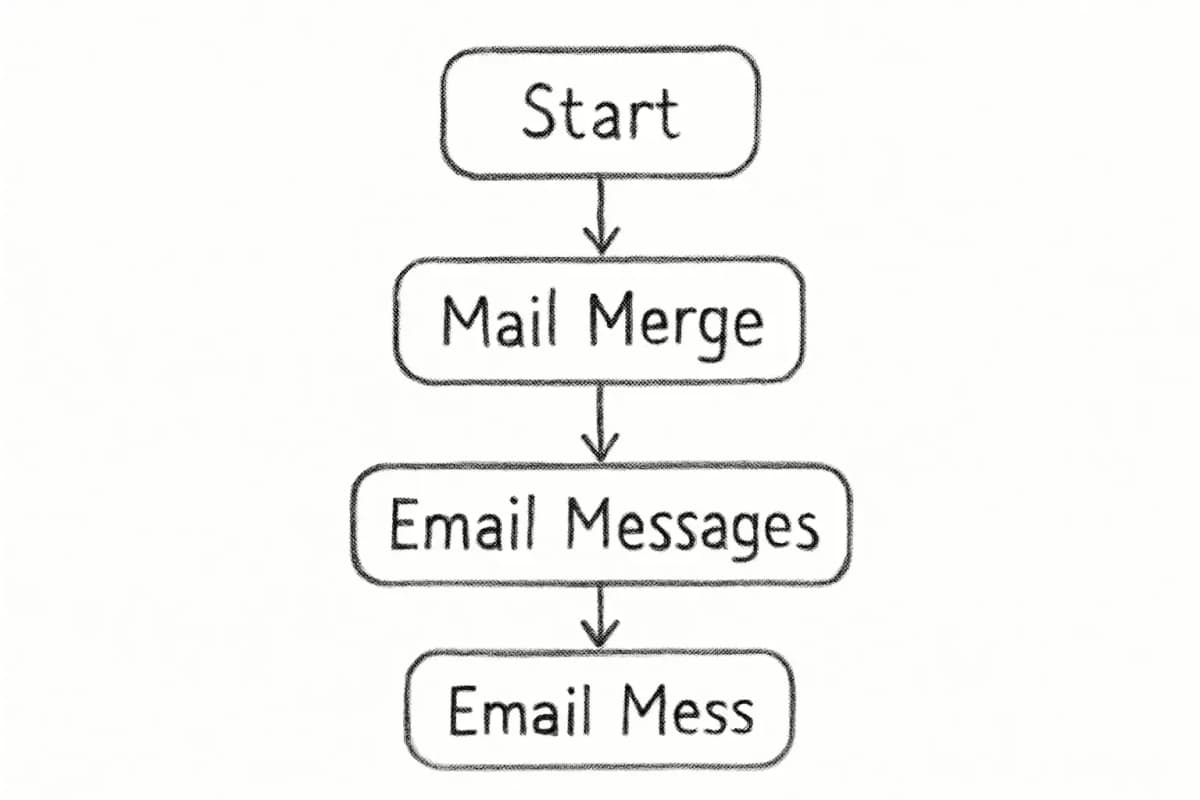
Go to the Mailings tab, click Start Mail Merge, then select E-mail Messages.
Write your email body. Use a clear structure: a direct opening line, the core message, and a single call to action.
Add personalization by placing merge fields, which are placeholders recognizable by guillemets "«»" in Word. The option to insert them is in the Mailings tab under Insert Merge Field.
Writing the Email Copy
Every marketing email needs one clear goal. Every marketing email needs a specific, actionable next step. Whether you want recipients to visit your website, make a purchase, or download a resource, make your call-to-action button or link prominent and easy to find. Use action verbs like "Download," "Shop Now," or "Learn More" rather than generic phrases like "Click Here."
The conclusion here is not that Outlook is useless for marketing, but that it has a specific use case: smaller lists, relationship-focused outreach, and teams not yet ready to invest in a full ESP.
Step 1: Organize Your Contact List
Before you write a single word of copy, your contact list needs to be structured. Disorganized data is the most common reason a mail merge fails or sends the wrong message to the wrong person.
Start by organizing your contacts into meaningful groups that reflect your different audience segments. Navigate to the People section in Outlook and create contact groups based on criteria like customer type, purchase history, or geographic location. For example, you might have separate groups for "New Customers," "Repeat Buyers," and "Newsletter Subscribers."
For a mail merge, you will also need an Excel spreadsheet as your data source. To organize contact information and prepare to use it in your mail merge, use an Excel spreadsheet. List each piece of information in a separate column to easily import it into Outlook. Standard columns include First Name, Last Name, Email Address, and any personalization fields you plan to use in the email body.
Good list hygiene matters here. Remove invalid addresses regularly to reduce spam complaints, bounces, and wasted messages.
Step 2: Create Your Email Template in Microsoft Word
When using the mail merge feature, you will not draft the message body in the built-in compose window of Outlook. Instead, you do so in Microsoft Word.
Here is how to set it up:
Open Microsoft Word and select Blank Document.
Go to the Mailings tab, click Start Mail Merge, then select E-mail Messages.
Write your email body. Use a clear structure: a direct opening line, the core message, and a single call to action.
Add personalization by placing merge fields, which are placeholders recognizable by guillemets "«»" in Word. The option to insert them is in the Mailings tab under Insert Merge Field.
Writing the Email Copy
Every marketing email needs one clear goal. Every marketing email needs a specific, actionable next step. Whether you want recipients to visit your website, make a purchase, or download a resource, make your call-to-action button or link prominent and easy to find. Use action verbs like "Download," "Shop Now," or "Learn More" rather than generic phrases like "Click Here."
Your subject line carries a large share of the work. Keep it concise and specific. Keep subject lines short, clear, and relevant. Avoid spammy words, excessive punctuation, or all caps. Personalization and curiosity-driven language tend to improve open rates. For a deeper look at what actually moves the needle, read our article on Email Subject Line Best Practices That Boost Open Rates by 27%.
Saving Your Template for Reuse
Use email templates to send messages that include information that infrequently changes from message to message. Compose and save a message as a template and then reuse it when you want it. In New Outlook, Classic Outlook, and Outlook on the Web, there are two ways to save templates: using the Mail Templates built-in feature or the My Templates add-in.
Templates lock in your branding, disclaimers, and calls-to-action, ensuring every campaign looks and sounds consistent. They also cut production time dramatically, freeing you to focus on segmentation, personalization, and timely follow-ups.
Step 3: Link Your Recipient List and Insert Merge Fields
With your Word document open and your Excel file saved, you can connect the two.
In Word, go to the Mailings tab and click Select Recipients.
Click "Use an Existing List" and select the mailing list file you created in Excel, then click OK.
Place merge fields where personalization is needed. Use the Preview Results option to check how the final email will look before you send.
Based on the merge fields you add, Outlook will pull the information from your Excel spreadsheet and automatically generate individual emails for each contact. As a result, the messages appear personalized with each recipient's data merged into the email body and subject line.
Step 4: Send the Mail Merge Through Outlook
Once you have reviewed the preview and everything looks correct:
Click the Finish and Merge button and select the Merge to Email option. You will be asked to define the To field, subject line, and format of each email (plain text or HTML). Clicking the Email Merge to Outbox button initiates the email sending and gets your personalized emails on their way to recipients.
Open Outlook and navigate to your Outbox folder on the left-hand side of your screen. Your personalized mail merge messages will already be there waiting for you. Click Send/Receive All Folders in the top right corner of Outlook. This will send all of your mail merge messages to your recipients.
One thing to note: Outlook does not let you include a subject line at the template creation stage, so you will need to add it manually right before sending.
Step 5: Apply Deliverability Best Practices
Sending the email is only half the job. Getting it into the inbox is the other half.
Outlook now enforces stricter email authentication standards for domains sending more than 5,000 emails per day, requiring mandatory SPF, DKIM, and DMARC settings. Even if your list is smaller, setting these up protects your sender reputation.
Key requirements include: SPF, which passes authentication by listing authorized IP addresses in your domain's DNS record; DKIM, which validates email integrity and authenticity; and DMARC, which should be set at least to p=none and aligned with either SPF or DKIM.
Beyond authentication, follow these practices with every send:
Your subject line carries a large share of the work. Keep it concise and specific. Keep subject lines short, clear, and relevant. Avoid spammy words, excessive punctuation, or all caps. Personalization and curiosity-driven language tend to improve open rates. For a deeper look at what actually moves the needle, read our article on Email Subject Line Best Practices That Boost Open Rates by 27%.
Saving Your Template for Reuse
Use email templates to send messages that include information that infrequently changes from message to message. Compose and save a message as a template and then reuse it when you want it. In New Outlook, Classic Outlook, and Outlook on the Web, there are two ways to save templates: using the Mail Templates built-in feature or the My Templates add-in.
Templates lock in your branding, disclaimers, and calls-to-action, ensuring every campaign looks and sounds consistent. They also cut production time dramatically, freeing you to focus on segmentation, personalization, and timely follow-ups.
Step 3: Link Your Recipient List and Insert Merge Fields
With your Word document open and your Excel file saved, you can connect the two.
In Word, go to the Mailings tab and click Select Recipients.
Click "Use an Existing List" and select the mailing list file you created in Excel, then click OK.
Place merge fields where personalization is needed. Use the Preview Results option to check how the final email will look before you send.
Based on the merge fields you add, Outlook will pull the information from your Excel spreadsheet and automatically generate individual emails for each contact. As a result, the messages appear personalized with each recipient's data merged into the email body and subject line.
Step 4: Send the Mail Merge Through Outlook
Once you have reviewed the preview and everything looks correct:
Click the Finish and Merge button and select the Merge to Email option. You will be asked to define the To field, subject line, and format of each email (plain text or HTML). Clicking the Email Merge to Outbox button initiates the email sending and gets your personalized emails on their way to recipients.
Open Outlook and navigate to your Outbox folder on the left-hand side of your screen. Your personalized mail merge messages will already be there waiting for you. Click Send/Receive All Folders in the top right corner of Outlook. This will send all of your mail merge messages to your recipients.
One thing to note: Outlook does not let you include a subject line at the template creation stage, so you will need to add it manually right before sending.
Step 5: Apply Deliverability Best Practices
Sending the email is only half the job. Getting it into the inbox is the other half.
Outlook now enforces stricter email authentication standards for domains sending more than 5,000 emails per day, requiring mandatory SPF, DKIM, and DMARC settings. Even if your list is smaller, setting these up protects your sender reputation.
Key requirements include: SPF, which passes authentication by listing authorized IP addresses in your domain's DNS record; DKIM, which validates email integrity and authenticity; and DMARC, which should be set at least to p=none and aligned with either SPF or DKIM.
Beyond authentication, follow these practices with every send:
Provide an easy, clearly visible way for recipients to opt out of further messages, particularly for marketing or bulk mail.
Use accurate subject lines, avoid deceptive headers, and ensure your recipients have consented to receive your messages.
Send your marketing emails at optimal times when your audience is most likely to engage. Generally, Tuesday through Thursday between 10 AM and 2 PM show higher open rates, but test different timing with your specific audience to find what works best.
Successful email campaigns are driven by insights, not guesswork. Collecting and analyzing email marketing data helps you understand what your audience responds to and where improvements are needed. Simple metrics like open rates, click-through rates, and reply frequency can reveal which subject lines work best and what type of content generates engagement.
This is where Outlook shows its biggest weakness. Outlook offers limited tracking options like read receipts, which are not always reliable. For better insights, you can use trackable links or manually track responses and conversions through spreadsheets.
Outlook lacks email analytics including open rates, click-through rates, or engagement metrics, making it difficult for organizations to measure the success of email campaigns and improve future communications.
If you are sending to a list of any meaningful size and want to track performance accurately, this gap alone is reason to consider a dedicated platform. Third-party providers offer email analytics capabilities and features like email automation, list segmentation, and deliverability tools that Outlook currently lacks.
When to Move Beyond Outlook
Outlook works well for small, relationship-focused sends, internal announcements, or one-to-few outreach where personalization matters and list sizes stay under a few hundred contacts.
It starts to break down when you need:
HTML-designed templates with brand visuals
Open and click tracking at the campaign level
Automated sequences such as welcome series or drip flows
List growth and subscriber management tools
Reliable inbox placement at scale
You can send 1,000 emails in Outlook using Mail Merge or distribution lists, but Outlook is not built for large-scale email sending. Messages are subject to daily sending limits and lack tools for tracking, unsubscribe management, and delivery optimization. As a result, large sends may fail, trigger spam filters, or lead to temporary account restrictions.
Provide an easy, clearly visible way for recipients to opt out of further messages, particularly for marketing or bulk mail.
Use accurate subject lines, avoid deceptive headers, and ensure your recipients have consented to receive your messages.
Send your marketing emails at optimal times when your audience is most likely to engage. Generally, Tuesday through Thursday between 10 AM and 2 PM show higher open rates, but test different timing with your specific audience to find what works best.
Successful email campaigns are driven by insights, not guesswork. Collecting and analyzing email marketing data helps you understand what your audience responds to and where improvements are needed. Simple metrics like open rates, click-through rates, and reply frequency can reveal which subject lines work best and what type of content generates engagement.
This is where Outlook shows its biggest weakness. Outlook offers limited tracking options like read receipts, which are not always reliable. For better insights, you can use trackable links or manually track responses and conversions through spreadsheets.
Outlook lacks email analytics including open rates, click-through rates, or engagement metrics, making it difficult for organizations to measure the success of email campaigns and improve future communications.
If you are sending to a list of any meaningful size and want to track performance accurately, this gap alone is reason to consider a dedicated platform. Third-party providers offer email analytics capabilities and features like email automation, list segmentation, and deliverability tools that Outlook currently lacks.
When to Move Beyond Outlook
Outlook works well for small, relationship-focused sends, internal announcements, or one-to-few outreach where personalization matters and list sizes stay under a few hundred contacts.
It starts to break down when you need:
HTML-designed templates with brand visuals
Open and click tracking at the campaign level
Automated sequences such as welcome series or drip flows
List growth and subscriber management tools
Reliable inbox placement at scale
You can send 1,000 emails in Outlook using Mail Merge or distribution lists, but Outlook is not built for large-scale email sending. Messages are subject to daily sending limits and lack tools for tracking, unsubscribe management, and delivery optimization. As a result, large sends may fail, trigger spam filters, or lead to temporary account restrictions.
If you are at this point, it is worth reviewing our Email Marketing Strategy Template for 2025 to understand how a purpose-built platform fits into your broader marketing plan.
Frequently Asked Questions
Can I send bulk marketing emails directly from Outlook without Word?
Yes, using contact groups and the BCC field, but this method is limited. The BCC recipient limit for Outlook 365 accounts is 500 recipients, which forces organizations to split bulk emails into smaller groups, increasing the risk of exposing recipients' information and complicating email list management. Mail Merge via Word is the more reliable method for personalized sends.
Does Outlook support HTML email templates for marketing campaigns?
Without email templates and coding resources, and with no way to do HTML designs, it is pretty hard to create eye-catching branded emails in Outlook. For HTML-designed campaigns with responsive layouts, you will need a dedicated ESP or a tool like Salesforce Marketing Cloud email templates.
What are Outlook's daily sending limits for marketing emails?
Microsoft 365's email sending limits for Outlook include up to 10,000 email sends per day. Note that these limits can vary depending on your specific Microsoft 365 subscription plan. Free Outlook accounts are limited to approximately 300 per day. For larger lists, a dedicated email marketing service is the safer choice.
Is it legal to send marketing emails through Outlook?
Yes, but you must comply with email regulations such as CAN-SPAM or GDPR. This includes getting recipient consent, using accurate sender information, and providing a clear unsubscribe option in every marketing email. Non-compliance can damage your sender reputation and expose your business to legal risk regardless of the tool you use to send.
No comments yet. Be the first!
If you are at this point, it is worth reviewing our Email Marketing Strategy Template for 2025 to understand how a purpose-built platform fits into your broader marketing plan.
Frequently Asked Questions
Can I send bulk marketing emails directly from Outlook without Word?
Yes, using contact groups and the BCC field, but this method is limited. The BCC recipient limit for Outlook 365 accounts is 500 recipients, which forces organizations to split bulk emails into smaller groups, increasing the risk of exposing recipients' information and complicating email list management. Mail Merge via Word is the more reliable method for personalized sends.
Does Outlook support HTML email templates for marketing campaigns?
Without email templates and coding resources, and with no way to do HTML designs, it is pretty hard to create eye-catching branded emails in Outlook. For HTML-designed campaigns with responsive layouts, you will need a dedicated ESP or a tool like Salesforce Marketing Cloud email templates.
What are Outlook's daily sending limits for marketing emails?
Microsoft 365's email sending limits for Outlook include up to 10,000 email sends per day. Note that these limits can vary depending on your specific Microsoft 365 subscription plan. Free Outlook accounts are limited to approximately 300 per day. For larger lists, a dedicated email marketing service is the safer choice.
Is it legal to send marketing emails through Outlook?
Yes, but you must comply with email regulations such as CAN-SPAM or GDPR. This includes getting recipient consent, using accurate sender information, and providing a clear unsubscribe option in every marketing email. Non-compliance can damage your sender reputation and expose your business to legal risk regardless of the tool you use to send.