
Email marketing delivers an average ROI of $36 for every $1 spent, which is why so many business owners look for ways to run campaigns without immediately investing in dedicated software. Microsoft Outlook is the tool already open on their screen, so the question becomes natural: can you use it to send marketing emails, and if so, how?
The honest answer is yes, with real limitations. Outlook gives you two practical paths for creating a marketing email: the built-in Mail Merge workflow and the native newsletter feature introduced in recent Microsoft 365 updates. Both work. Neither is a full replacement for a dedicated email marketing platform. This guide walks you through both methods step by step, explains where Outlook hits its ceiling, and tells you when to move on to purpose-built tools.
Key Takeaways
- Outlook supports marketing email creation through Mail Merge (Word + Excel + Outlook) and its built-in newsletter feature.
- For Outlook 365, the recipient limit is 500 recipients per email and 10,000 recipients per day.
- Outlook lacks proper email design features, device preview, and reporting or analytics.
- Mail Merge allows basic personalization (name, company, custom fields) but provides no open rate or click tracking.
- For lists beyond a few hundred contacts, or any campaign requiring automation or analytics, a dedicated ESP is the better investment.
Why Use Outlook for Marketing Email at All?
Many small business owners and entrepreneurs already use Outlook for daily communications, making it a natural choice for marketing campaigns. The platform offers built-in features that can help you create professional-looking emails, manage contact lists, and track basic performance metrics without investing in expensive third-party software.
If your list is small (under 500 contacts), your audience is internal or semi-captive, and you need to send occasional announcements rather than automated sequences, Outlook can get the job done. The friction is low because you are already in the tool.
That said, if you are hoping to build a real audience, grow a list, or send polished campaigns that feel like part of your brand, Outlook only takes you so far. That is why most businesses eventually move to a dedicated email marketing platform, which gives you creative flexibility, professional templates, automation features, and audience insights Outlook does not offer.
Method 1: Mail Merge (Word + Excel + Outlook)
Mail Merge is the most capable way to create a marketing email in Outlook. It allows users to send personalized email messages to multiple recipients by combining a template created in Word with a data source such as an Excel spreadsheet or Outlook Contacts.
It is a symbiotic relationship where Word handles the content and design, Excel manages the data, and Outlook serves as the distribution engine.
Step 1: Build your contact list in Excel
Start by organizing your contact information. Each column in Excel should hold a specific piece of data, such as First Name, Last Name, Email Address, or Company Name. Keep the column headers clean and consistent. Save the file before moving to Word.
Step 2: Write your email in Word
Open Microsoft Word and create a new blank document. Navigate to the Mailings tab, click Start Mail Merge, and select E-Mail Messages. This sets your document to be treated as an email template rather than a printable letter.
Write your email body. Include placeholders for personalization such as {{Name}} or {{Company}}. These placeholders will be replaced with actual recipient details during the merging process.
Step 3: Connect your recipient list
Click Select Recipients from the Mailings tab, then click Use an Existing List. Select the mailing list file you created in Excel and click OK.
Step 4: Insert merge fields
Click Insert Merge Field under the Mailings tab. Choose the relevant field names from your connected data source, such as First_Name or Company_Name, and place them at the appropriate points in your email body.
Step 5: Preview, then send
Use the Preview Results button in the Mailings tab to check how the email looks for individual recipients. Once satisfied, click Finish and Merge, then select Send E-mail Messages. Outlook will pull the info from your Excel spreadsheet and automatically generate individual emails for each contact. The messages appear personalized with each recipient's data merged into the email body and subject line.
For tips on writing subject lines that actually get opened before you send, see our guide on Email Subject Line Best Practices That Boost Open Rates by 27%.
Method 2: The Outlook Newsletter Feature
The Outlook newsletter feature is less of a marketing tool and more of a built-in publishing option for Microsoft 365 users. It is designed to help you share updates right inside your company or community, similar to a simplified version of Substack or LinkedIn Newsletters, but inside Outlook.
Each new post automatically lands in subscribers' inboxes. It is an easy way to keep coworkers or members informed, suitable for company announcements, weekly project roundups, or HR updates.
To use this feature, open Outlook, create a new post, and choose to share it as a newsletter. People in your organization or those you invite can subscribe to receive updates by email.
The design limitations to know
Outlook offers a few basic templates, but you cannot customize them much. There is no way to apply brand colors, add custom fonts, adjust spacing, or create a polished newsletter layout. The result is a simple email that often feels more like a memo than a branded publication.
The Outlook editor only includes simple text and image blocks. You cannot add call-to-action buttons, multi-column layouts, HTML sections, or rich media elements.
Organizing Your Contacts Before You Send
Contact organization is the step most people skip, and it is also the step that most directly determines campaign quality.
Start by organizing your contacts into meaningful groups that reflect your different audience segments. Navigate to the People section in Outlook and create contact groups based on criteria like customer type, purchase history, or geographic location. For example, you might have separate groups for "New Customers," "Repeat Buyers," and "Newsletter Subscribers." This segmentation allows you to tailor your messaging to specific audiences, which typically results in higher open rates and better engagement.
Even at small scale, segmentation matters. For a deeper look at how segmentation drives returns, see our resource on Email List Segmentation Strategies That Boost ROI by 760%.
Writing a Marketing Email That Actually Works in Outlook
Regardless of the sending method, the email content itself determines results. A few principles that apply specifically to Outlook-based campaigns:
Subject lines: Keep subject lines short (30 to 50 characters), clear, and relevant. Avoid spammy words, excessive punctuation, or all caps. Personalization and curiosity-driven language tend to improve open rates.
Call to action: Every marketing email needs a specific, actionable next step. Whether you want recipients to visit your website, make a purchase, or download a resource, make your call to action prominent and easy to find. Use action verbs like "Download," "Shop Now," or "Learn More" rather than generic phrases like "Click Here." Place your primary call to action above the fold and consider repeating it at the end of longer emails.
Send timing: Send your marketing emails at optimal times when your audience is most likely to engage. Generally, Tuesday through Thursday between 10 AM and 2 PM show higher open rates, but test different timing with your specific audience to find what works best.
Compliance: You must comply with email regulations such as CAN-SPAM or GDPR. This includes getting recipient consent, using accurate sender information, and providing a clear unsubscribe option in every marketing email.
The Real Limits of Using Outlook for Marketing
Knowing the hard constraints helps you plan realistically.
Sending caps: Outlook has strict daily, hourly, and recipient limits to prevent spam and protect users. While Microsoft 365 business accounts can send up to 10,000 emails per day, personal Outlook accounts can only send roughly 300.
Deliverability risk: If your sender address is a Microsoft Outlook address, there is a high chance that your email will never make it to the inbox. Outlook is an ESP designed for personal use, so most ESPs flag bulk emails from Outlook addresses as suspicious.
No analytics: Outlook lacks email analytics, including open rates, click-through rates, or employee engagement metrics, making it difficult to measure the success of campaigns and improve future communications.
No device preview: Outlook does not offer a way to test your emails before sending, so you cannot validate how your messages will appear across a variety of devices. Previewing emails is an important step, and obtaining metrics on the devices your recipients are using helps guide future design decisions.
Tracking workaround: Outlook offers limited tracking options like read receipts, which are not always reliable. For better insights, you can use trackable links via services like Bitly, or manually track responses and conversions through spreadsheets. 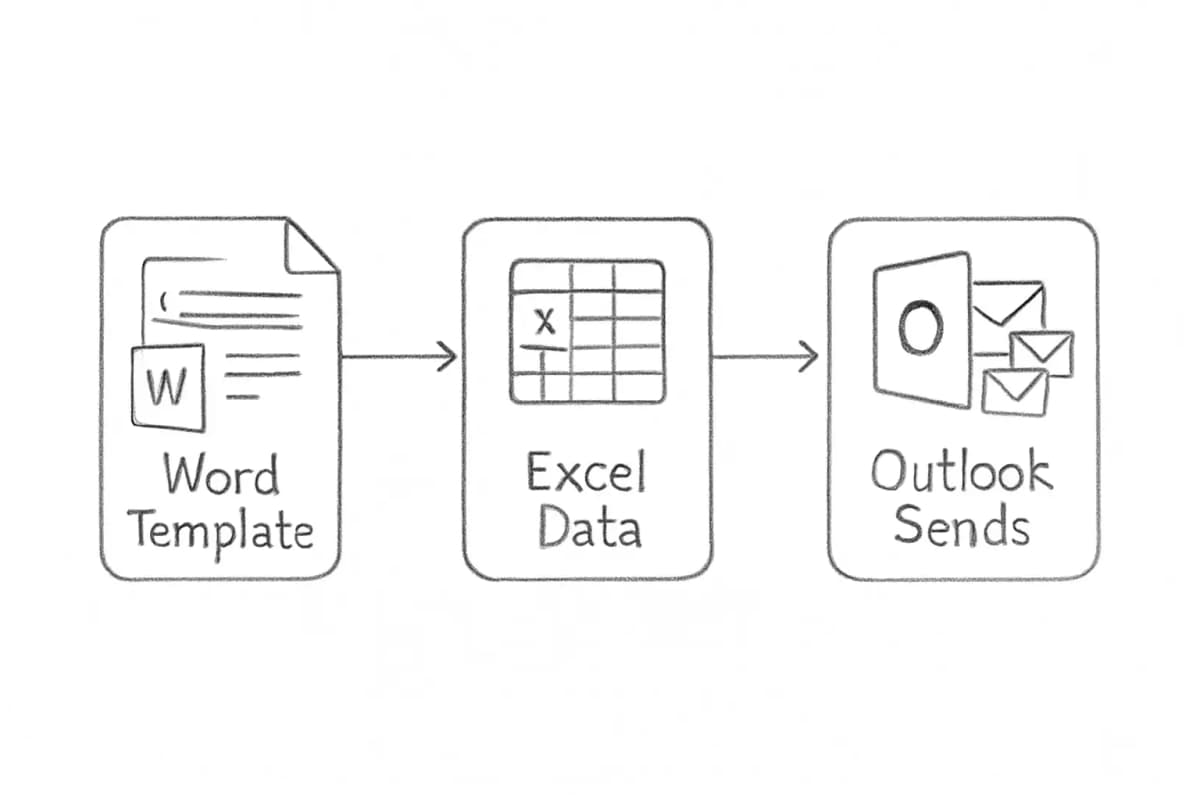
When to Move Beyond Outlook
Outlook works for early-stage, low-volume sends. As soon as any of the following become true, it is time to use a dedicated email marketing platform:
- Your list exceeds 500 contacts.
- You need automated sequences such as welcome flows, drip campaigns, or cart abandonment.
- You want A/B testing on subject lines or content. Brands that regularly A/B test their emails achieve 83% higher ROI than those that never test.
- You need reliable open rate, click rate, and conversion tracking.
- You are sending to external audiences where deliverability is critical.
Third-party providers have email analytics capabilities and features like email automation, list segmentation, and deliverability tools that Outlook currently lacks.
Platforms such as Mailchimp, Brevo, Kit, and ActiveCampaign all integrate with or import from Outlook contacts, so the transition is not as disruptive as it might appear. For a full strategic framework before you scale, see our Email Marketing Strategy Template for 2025.
Frequently Asked Questions
Can you send bulk marketing emails from Outlook?
While sending mass emails in Outlook is possible, there are limitations for using Outlook's bulk email tool. The most practical method is Mail Merge using Word and Excel. Outlook works well for small-scale needs like internal communications or announcements. With Outlook 365, you are limited to 5,000 recipients per day and 500 email addresses per message, which may suffice for modest campaigns.
Does Outlook track email opens and clicks?
Outlook does not provide detailed tracking metrics like open rates or click-through rates. This lack of insights makes it challenging to measure the success of email campaigns and improve future communications. You can partially compensate by using trackable short links, but you will not get the per-recipient data that a dedicated ESP provides.
How do you personalize a marketing email in Outlook?
You can personalize emails using Outlook contact fields or by leveraging Microsoft Word's Mail Merge feature. This allows you to include recipient names, company details, or custom messages for a more personal touch. More advanced personalization such as behavior-based or purchase-based content requires a dedicated marketing platform.
Is it legal to send marketing emails from Outlook?
Yes, but you must comply with email regulations such as CAN-SPAM or GDPR. This includes getting recipient consent, using accurate sender information, and providing a clear unsubscribe option in every marketing email. Failure to include an unsubscribe mechanism in a commercial email is a legal violation in most markets, regardless of the tool used to send it.